Folder Structure
Basic Rules
When you create new Assets or Folder make sure that you follow these simple rules:
In any Name never use the following unless absolutely neccessary:
- Whitespace of any kind
- Backslash
\ - Symbols e.g.
!$%@ - Any Unicode character
In any Name you should:
- Adhere to the following RegEx:
[A-Za-z0-9]+ - Use underscores as sparingly possible unless it is for suffixes
- Resort to PascalCase
The reasoning for this ensures compability across all platforms and tools and help prevent downtime due to potentially bad characters for names in assets/folders you don't control.
Directory Structure
Consider the directory structure of our project like a law, a violation causes unneeded chaos.
Folder Names
Always use PascalCase
PascalCase refers to a naming convention with a capital letter and then instead of using spaces, every following word also starts with a capital letter. For example: EntityConfig, UnitConfig or PlayerController
Never use Spaces
Reinforcing the above, never use spaces. Spaces can cause various tools and processes to fail. Ideally your project is in a path that doesn't contain spaces like D:\BFMEReforged\ instead of C:\Users\MyUser\My Documents\Unreal Projects\BFMEReforged
Never Use Unicode Characters or other symbols
If on of your assets should be named Barad-dûr, its name should be BaradDur. Unicode characters can be worse than spaces for certain tools and Unreal doesn't support unicode paths either.
using Characters outside a-z, A-Z, and 0-9 such as @, $, #, ,, and * can also lead to unexpected issues that might be hard to track.
Folders for Assets
No Global Assets
Every Assets should have a purpose, otherwise it doesn't belong in the project. If an asset is for experimental testing and shouldn't be used by the project it should be put in your Developer folder.
Reduce Migration Conflicts
When working in a seperate Project to test out new features it is common to copy the assets over. When you find yourself in this situation it is best practice to use the Content Browsers Migrate tool as it will copy over not just the selected assets but also required dependencies.
After a migration, safe merging can be done using the Replace References tool in the Content Browser.
All Map Files belong in the Levels Folder
Being able to tell someone to open a specific level and not having to explain where said level is located is a great time saver. You might want to place your map inside a subfolder of Levels.
Use the Core Folder for critical Blueprints or other Assets
Use the /Content/Core folder for assets that are absolutely fundamental to the project. For example base GameMode, GameState, PlayerState, PlayerController, and related Blueprints shoud be located here.
This creates a very clear dont touch these message for other team members. Non-Programers should have little reason to enter the Core folder.
For example, if you want to create a Pick up that can be placed in the world, there should be a base PickUp class in Core that defines base behavior for a pickup. Specific pickups such as a Health or Armor pack should exist in a folder such as /Content/Placeables/Pickups/. Designers can define and tweak pickups in this folder as they see fit, but they shouldn't touch Core/PickUp as they may unintentionally break pickups project-wide.
Do not create folders called Assets or AssetTypes
Creating a folder named Assets is redundant
All assets are considered assets.
Creating a folder named Meshes, Textures, or Materials is redundant
All asset names are named with their asset type in mind (Prefix/Suffix). These folders offer only redundant information and the use of these folders can easily be replaced with the filtering system the Content Browser provides.
Want to view only static meshes in Environments/Rocks/? Simply Turn on the Static Mesh filter.
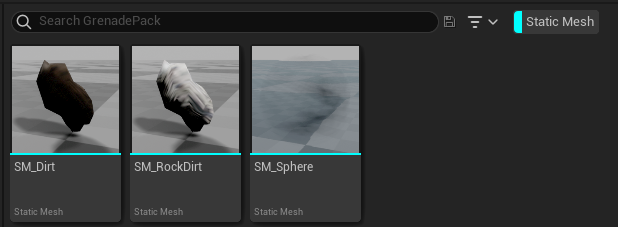 Alternatively search for SM_ (the prefix for Static Meshes)
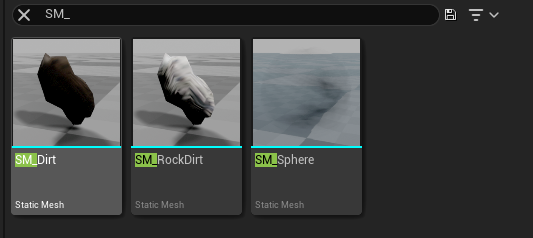
When searching this way and the prefixes being applied correctly, Unreal should sort these assets alphabetically.
Very large Asset(s/ets) get their own folder layout
There can be certain asset types that have a huge volume of related files where each asset has a unique purpose. The two most common are Animation and Audio assets. If you find yourself having 15+ of these assets that belong together, they should be together.
For example, animations that are shared across multiple characters should lay in Characters/Common/Animations and may have sub-folder wsuch as Locomotion or Cinematic.
This does not apply to assets like textures and materials. It is common for a Rocks folder to have a large amount of textures if there are a large amount of rocks, however these textures are generally only related to a few specific rocks and should be named appropriately. Even if these texture are part of a Material Library.
Material Library
Master Materials, Layered Materials or any form of reusable materials or textures that do not belong to any specific asset should be located in Content/MaterialLibrary.
This way all global materials have a place to live and are easily located.
The Material Library does not have to consist of purely materials. Shared Utility Textures, material functions and other things related to this should be stored here as well within folders that designated their intended purpose. For example, generic noise textures should be located in MaterialLibrary/Utility.
Any testing or debug Materials should be within MaterialLibrary/Debug. This allows debug Materials to be easily stripped in the cooking process and makes it incredibly obvious if production assets are using these.
No Empty Folders
There shouldn't be any empty folders. They clutter the content browser.
If you find that the content browser has an empty folder you can't delete, you should do the following:
- Be sure you have Source Control enabled.
- Immediately run the
Fix Up Redirectorson the Project folder. - Navigate to the folder on-disk and delete the assets inside.
- Close the editor
- Make sure your Source Control is in sync.
- Reopen the editor. Confirm everything is still working as intended.
- Ensure the folder is now gone.
- Submit changes to Source Control.